Introduction
The Spivi® mobile app makes it possible for Spivi® system users to reserve classes, view ride stats, purchase classes, check their account balance and edit their Spivi® profile from any mobile phone. This document is made for Spivi® system operators and users. It highlights the mobile app features and provides user guidance.
Download the Spivi app to your mobile device:
The Spivi app is available for both iPhone and Android.

Log into the app:
1. If it’s your first time here, select your country or current location from the list, and press Next.
Select your state or city from the option list, and press Next.

2. Select your studio/gym from the option list and press Next.

Schedule a class and manage reservations:
After logging into your studio\gym, an updated schedule will appear on the screen.
1. Tap on the class you want.

Note: At the top of the schedule is the Join the current active class button. This option allows users to log-in to an off-schedule class at the studio/gym.
2. Sign in with your Email and password or your Facebook account. On the Sign-up screen you can also create a New Customer account.
Note: Logging in through Facebook will allow you to share your results.
3. Read the Studio Liability Release, then scroll down and press I agree with the above terms to continue your registration.

4. For Spivi Classes with spot reservation: On the studio layout map select your spot by tapping on the number or by choosing from the list. Tap the Sign Up button to continue.


For Spivi Classes with no spot reservation or Non-Spivi classes: Press Reserve my spot to confirm your reservation.
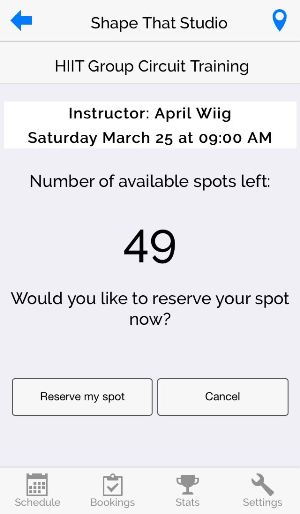
5. An Option to update privacy settings will appear on the screen. Press Close to continue without changing your privacy settings.
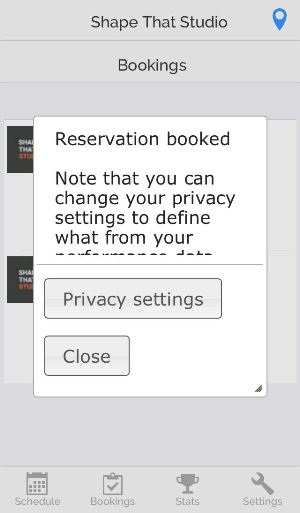
Your reservation is now confirmed:
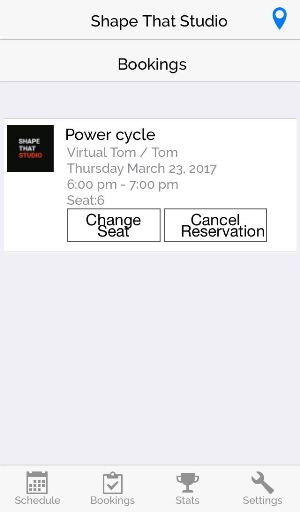
Cancel or change reservations:
Press the Bookings tab (on the bottom bar) to view your upcoming reservations. Tap the buttons to Change Seat/Cancel Reservation for any class.

Check workout stats:
1. Press the Stats tab (on the bottom bar) to view a list of your recent workouts.

2. Tap on any workout to view a detailed summary.

Purchase classes:
If your club is subscribed to use Spivi's Payment Processing Services:
You will see the available Pricing Options, after you've selected the spot you'd like to reserve.
If your club is integrated with Mindbody:
1. Press the Buy Now tab (on the bottom bar) to purchase a class or a package. Select one of the options from the list.

2. Enter your credit card details on the Payment Screen.
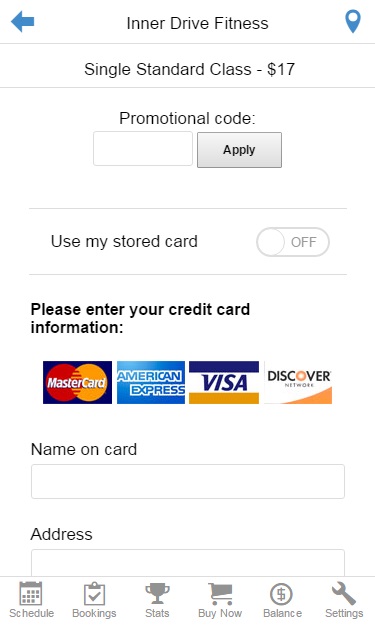
3. Complete your transaction by pressing Buy Now.

Check your Account Balance:
If your club is subscribed to use Spivi's Payment Processing Services:
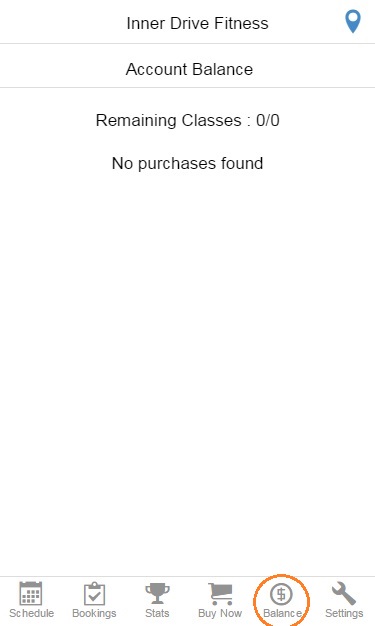
Press the Balance tab (on the bottom bar) to view your balance.
If your club is integrated with Mindbody:
Press the Balance tab (on the bottom bar) to view your purchase history and current Account Balance.
Manage Profile Settings:
Press the Settings tab (on the bottom bar). The Settings menu allows you to edit your Profile, Edit your avatar, update your Privacy settings, Pair your HR strap and Sign Out.

1. Tap on Profile to view and edit your personal details. Scroll down and Save your changes.

2. Press on Edit avatar to configure your avatar. Tap the options on the bottom to make changes to the face, hair, clothes, and accessories. Save your avatar by pressing Next.
3. Tap on Privacy settings to control the data that will be shown on the screen during a Spivi® class. Turn OFF the metrics you don't want shown during your Spivi® classes. Scroll down and Save your changes.

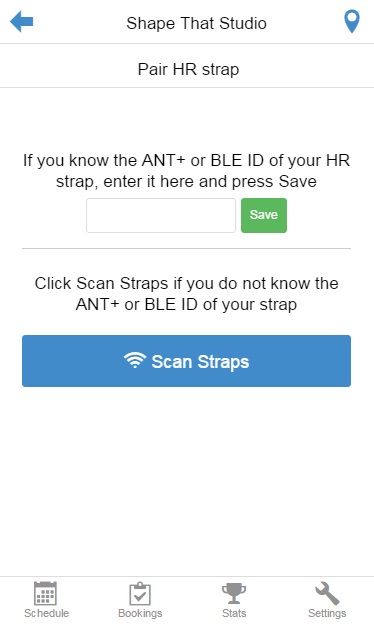
4. Tap on Pair HR strap to connect your ANT+ or BLE HR strap. Enter the strap ID or press the Scan Straps button.
NOTE: You must be standing near the Spivi system, and there must be a workout in progress in order to use this option.
Press the Save button to complete the pairing process.
5. Log out from the app by tapping the Sign Out button on the Settings screen.
Spivi App for Instructors
If you are set as an instructor to your club, then you will notice a new tab in the Settings option called Instructor.
Here, you can make use of the following features:
- Soft Controller: This feature allows you to control the system using your phone. A soft controller will appear on your phone screen. Contact support@spivi.com if you want to enable this feature.
- Class Attendees: This feature will display a list of all of your participants that are currently logged into the system. By tapping on a member's name, you can show or hide their stats, release their seat, or switch their seat.
- Release Occupied Seat: This feature will allow you to release an occupied seat. It will forcibly logout the member that is logged into this specific seat.
- Switch Seats: This feature will allow you to switch the seat assignments of two different seats.
- Take Seat: This feature will log you into the workout
Comments
0 comments
Article is closed for comments.