Spivi has a feature where you can add challenges for your members. These include competitions for Spivi Ecosystem Points (SEP), Workout Program Points (WPP), Calories, Distance, Energy and Club Visits. You can use this tool to push your members to work harder and compete with each other to get better results and keep them engaged.
Follow the steps below to add club challenges to your facility:
Log into Spivi.com and click on the My Studio link. Then, click on Club Challenges.
Once you are on the Club Challenges section, you can view all of the challenge options.
To create a challenge, click on the Add Challenge button.
Challenge Options
Here you will be able to select the Challenge type, the name of your challenge, the start and end dates, and a description for your members with specific details based on your preferences. 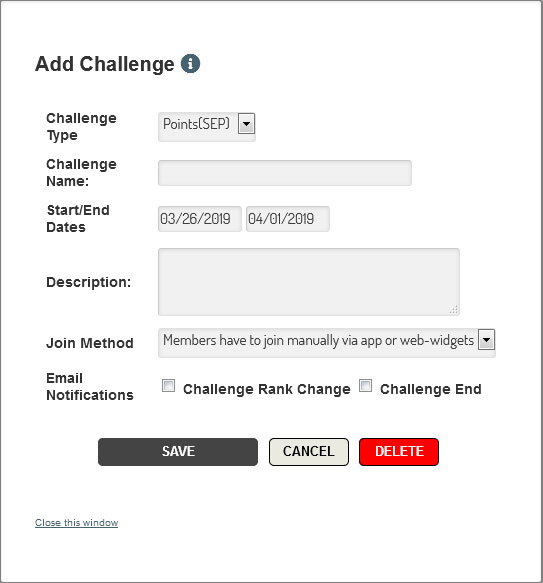
Join Methods
There are two methods to choose from when selecting the join method for your challenge.
1. All members are joined automatically when they take a class
2. Members join manually through via the app or web widgets
When you select the manual join option, members will have to log into the Spivi app (or use the web-widgets, if implemented on your website) and click on the challenges option at the bottom 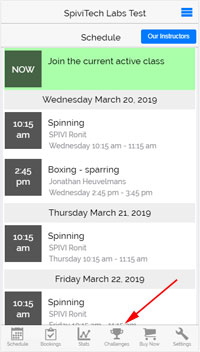
Email Notifications
You can also set email notifications for your members to be notified for the following:
- Challenge Rank Change - Notifications are sent to members when their rank in the challenge changes - Challenge End - Notifications are sent to members when the challenge ends.
Customizing Emails
Administrators can customize email notifications for challenges for their members from the Auto Emails section of the My Studio page of spivi.com.
The drop down menu allows you to select from four different challenge email types:
- Challenge Join Notifications - Notifications sent to members when they join the challenge
- Challenge Rank Change Up Notifications - Notifications sent to members as their rank increases
- Challenge Rank Change Down Notifications - Notifications sent to members as their rank decreases
- Challenge End Notifications - Notifications sent to members when the challenge has ended.
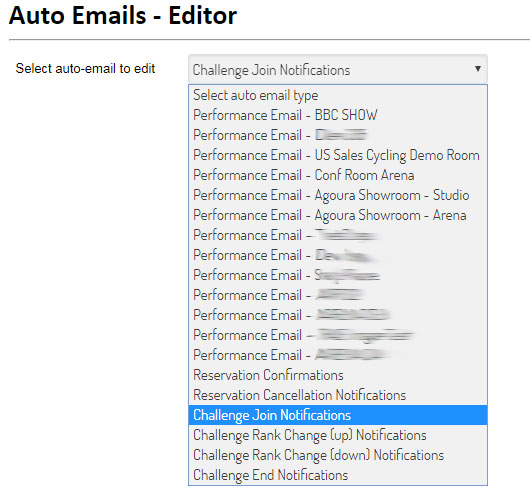
Auto Email Editor
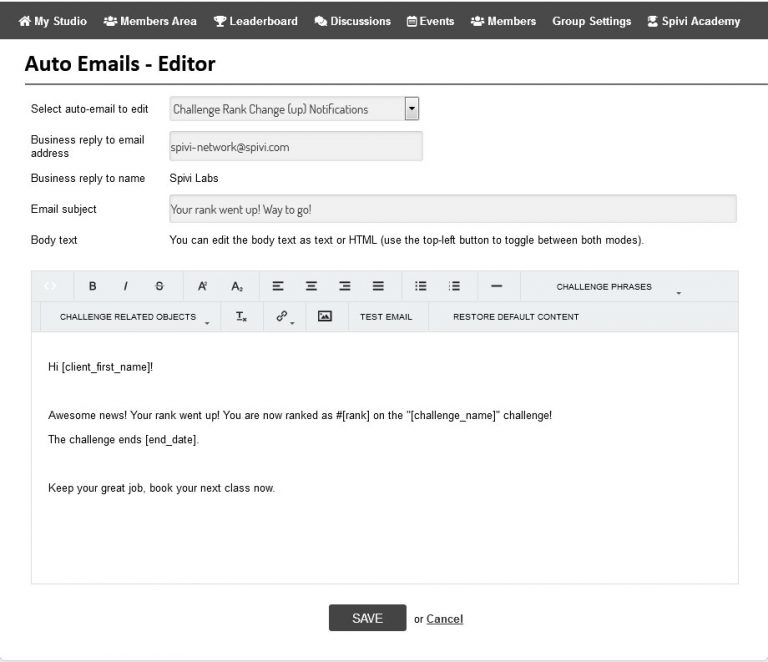
Here, you can customize the body of the email that is sent to your members:
Display Name- Anonymous
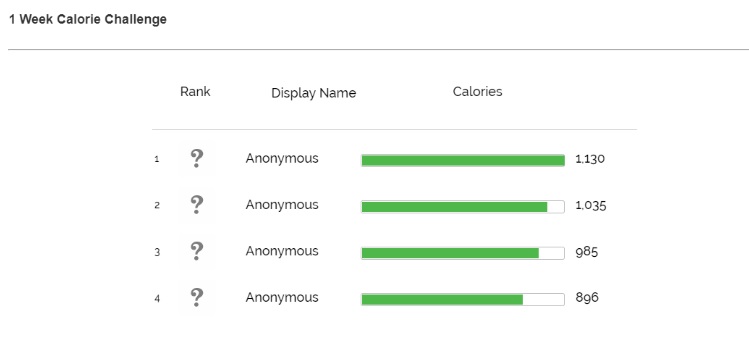
If you see Anonymous on the challenge leaderboard, it may suggest that the user their privacy settings configured to hide their personal information from others.
Additionally, their display name may be Anonymous if the member has not yet accepted the Spivi privacy settings and terms of use.
If a user sees that their display name shows Anonymous on the club challenge leaderboard, the member may need to check for the following:
- Log into spivi.com, then navigate to the Account & Settings page by clicking on your account name at the top of the website. Then, click on In-Class Privacy Settings
- Click the box next to “Show my Spivi Points (SEP)”
If the member's name is still Anonymous, it may be because the member has not logged into their Spivi account, and accepted the terms and conditions, and privacy policy.
The Privacy Policy and Terms of Use Agreement is the first thing that pops up upon logging into spivi.com: 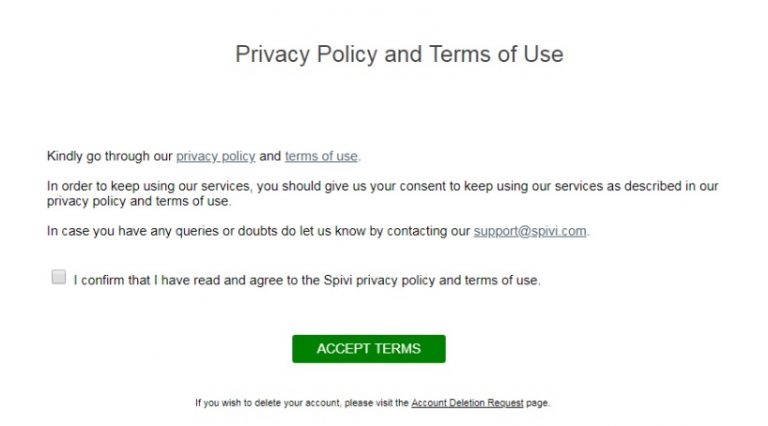
Comments
0 comments
Article is closed for comments.